
Call transcript
Live Hub can transcribe calls, per bot connection, and provide the text as a JSON file that you download from call history. Transcripts are available on both Trial and Essential plan accounts. See Account plans.
Transcripts are deleted automatically once the account's retention period expires, which is 7 days by default. See Recording and transcripts.
Enable call transcripts
You enable transcription for each bot connection, on the connection's Features tab.
To enable transcription on a bot connection:
-
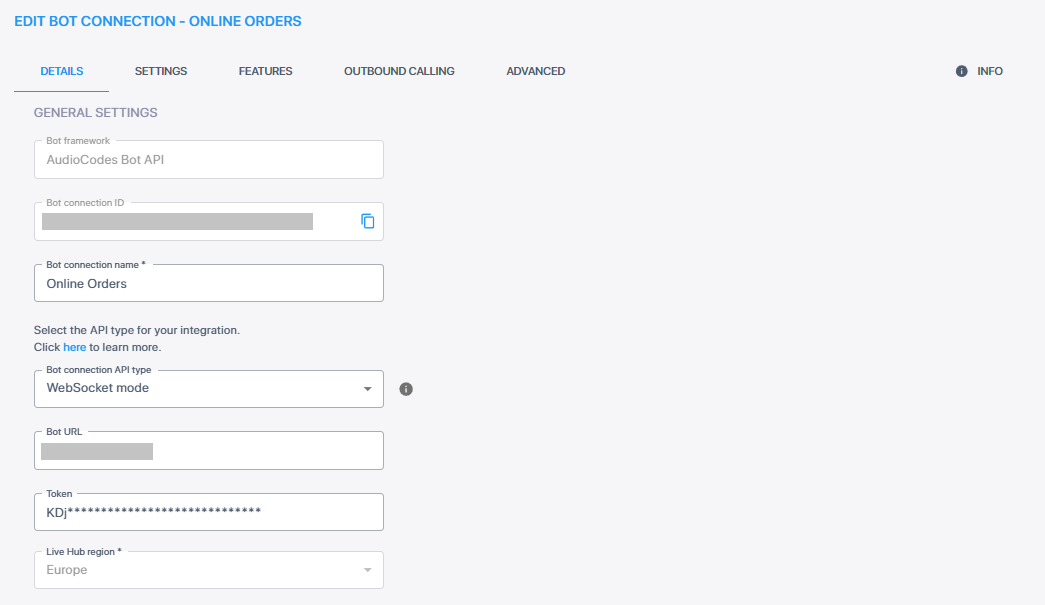
In the Navigation pane, select Bot connections.
-
On the bot connection you want to transcribe, click Edit.
-
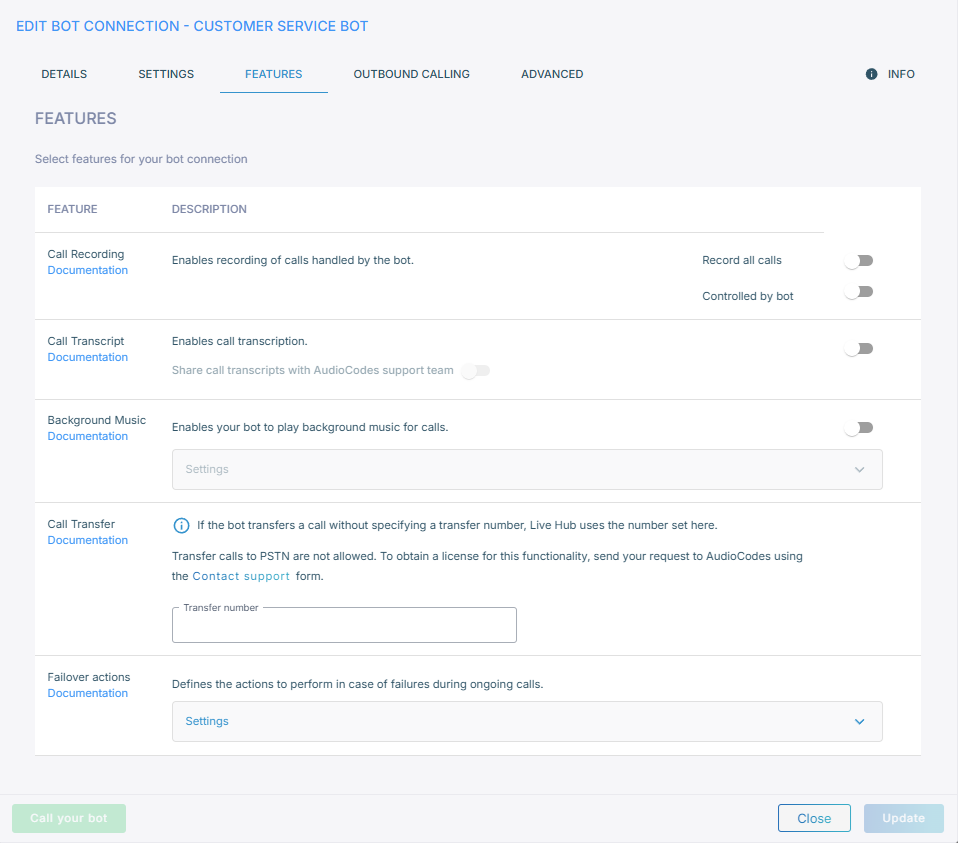
Select the Features tab.
-
Under 'Select features for your bot connection', turn on the Call Transcript toggle.
'Share call transcripts with AudioCodes support team' is off by default, and stays unavailable until the Call Transcript toggle is on. See Support.
-
Click Update.
Transcripts already produced stay downloadable if you later turn transcription off.
Download a transcript
You download transcripts from Call history.
Live Hub offers two forms:
| Form | Contains |
|---|---|
| Simple | The dialog between the parties |
| Enhanced | The dialog, plus system and control messages |
The file is JSON, named after the call session ID: Simple Call Transcript-{call session
ID}.json or Call Transcript-{call session ID}.json for the enhanced form. For
example, Simple Call Transcript-d59d2_25_3317.json.
If the transcript has been deleted, or none was made, Live Hub reports "The call transcript is not available".
What is in the file
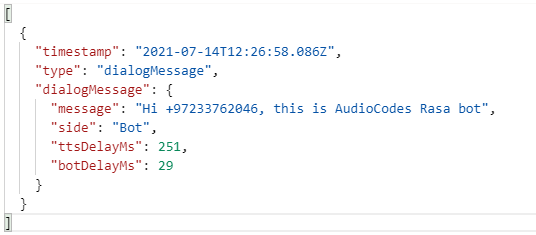
An enhanced transcript holds four kinds of message. A simple transcript holds
dialogMessage entries only.
dialogMessage records what was said, by the bot or the caller:
| Field | Meaning |
|---|---|
message
|
The spoken text |
side
|
bot or client |
ttsDelayMs
|
Text-to-speech delay, in milliseconds |
sttDelayMs
|
Speech-to-text delay, in milliseconds |
botDelayMs
|
Bot delay, in milliseconds |
controlMessage records control events and activities from the bot, such as a config
event, and carries the same fields as dialogMessage.
systemMessage records the major events that are not messages, among them conversation
started and ended, bot connected, API calls such as Dialogflow's detectIntent or
analyzedContent, and errors:
| Field | Meaning |
|---|---|
message
|
The message text |
sysMessageType
|
Info, Error, or APICall |
rawBotMessage holds the full body of each message to and from the bot:
| Field | Meaning |
|---|---|
message
|
The message contents. Strings over 1,000 characters and binary buffers are truncated. |
direction
|
in from the bot, out to the bot |